Features and tutorials (If you are new, start here)
- MyMountainTown
-
 Topic Author
- Mountain Champion
-

Less
More
28 Apr 2010 17:49 #1
by MyMountainTown
It takes some time to get used to new forums. If you have any questions feel free to post them on this thread and if someone here does not answer fast enough feel free to Direct Message the MountainTown Tech Crew or email us at
 . You can also refer to the FAQ page some questions will not apply to this forum if those features are not being used here but may help you. Some features that you may like-
Here is a link on how to add pictures and videos. http://mymountaintown.com/forums/the-campfire/2496
2. Extra smilies-Should you want more smilies than what is on the post page there are more at the bottom and you can view more.
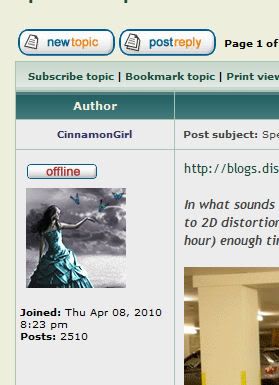
3. Avatars-There are avatars in the system that you can add directly from the system and you have many choices for your profile.
4. Bookmark or subscribe to any topic or category- While in a topic you can use these features. Those icons are on the top left over the topic. There is also a print button that makes the forum easier to print and a email icon to email a link to a topic to a friend up at the top of the topic. This is a great feature. Should you subscribe to a forum, for example the campfire, you will get an email whenever anyone posts there.
5.View unanswered posts • View unread posts • View new posts • View active topics-Under quick links.
6.User Control Panel-Top right. [/i]
7. Birthday feature-put in your birthday and the system shows when you have a birthday. You do not have to put the year of your birth for this to work but if you put the year of your birth it will post your age in your profile.
8. PM features- You can make folders for your PM's and if you reply to a PM the history is attached and you can read through your message. The folder feature is very helpful.
9. ONLINE and OFFLINE-You can choose to Hide your online status. Go to User Control Panel>Board Preferences>Hide my online Status. Mark Yes. This will show you as offline all the time.[/ul]
We will add more as we get more questions. Have fun!
Additional tutorials on this thread include:
How to add your Avatar- how to add a picture for your username
How to PM more than one person
How to convert a Powerpoint presentation into a postable slide show.
How to post a poll
To print a post or topic
. You can also refer to the FAQ page some questions will not apply to this forum if those features are not being used here but may help you. Some features that you may like-Here is a link on how to add pictures and videos. http://mymountaintown.com/forums/the-campfire/2496
-
1.
2. Extra smilies-Should you want more smilies than what is on the post page there are more at the bottom and you can view more.
3. Avatars-There are avatars in the system that you can add directly from the system and you have many choices for your profile.
4. Bookmark or subscribe to any topic or category- While in a topic you can use these features. Those icons are on the top left over the topic. There is also a print button that makes the forum easier to print and a email icon to email a link to a topic to a friend up at the top of the topic. This is a great feature. Should you subscribe to a forum, for example the campfire, you will get an email whenever anyone posts there.
5.View unanswered posts • View unread posts • View new posts • View active topics-Under quick links.
6.User Control Panel-Top right. [/i]
7. Birthday feature-put in your birthday and the system shows when you have a birthday. You do not have to put the year of your birth for this to work but if you put the year of your birth it will post your age in your profile.
8. PM features- You can make folders for your PM's and if you reply to a PM the history is attached and you can read through your message. The folder feature is very helpful.
9. ONLINE and OFFLINE-You can choose to Hide your online status. Go to User Control Panel>Board Preferences>Hide my online Status. Mark Yes. This will show you as offline all the time.[/ul]
We will add more as we get more questions. Have fun!
Additional tutorials on this thread include:
How to add your Avatar- how to add a picture for your username
How to PM more than one person
How to convert a Powerpoint presentation into a postable slide show.
How to post a poll
To print a post or topic
Please Log in or Create an account to join the conversation.
- MountainTownTechCrew
-
- Mountain Folk
-

Less
More
- Posts: 99
- Thank you received: 0
08 Sep 2010 21:19 #2
by MountainTownTechCrew
Replied by MountainTownTechCrew on topic Features and tutorials (If you are new, start here)
How to add your Avatar-- The picture under your name.
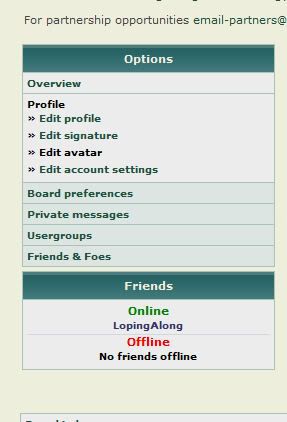
Go to Control Panel>Profile>Avatar
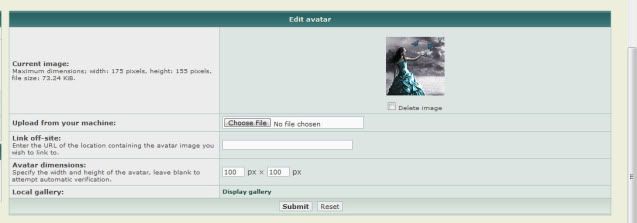
Then go to gallery. There are many to choose from or if you have a pic of your own. Just choose the file and it will upload.
Go to Control Panel>Profile>Avatar
Then go to gallery. There are many to choose from or if you have a pic of your own. Just choose the file and it will upload.
Please Log in or Create an account to join the conversation.
- MountainTownTechCrew
-
- Mountain Folk
-
Less
More
- Posts: 99
- Thank you received: 0
12 Oct 2010 15:42 #3
by MountainTownTechCrew
Replied by MountainTownTechCrew on topic Features and tutorials (If you are new, start here)
How to block a pm.
To block a PM from a sender, foe etc, here is how you do it.
Go to User Control Panel> Private Messages > Rules, folders & settings
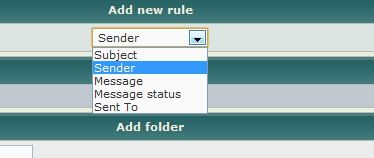
Add a new rule by these options select 'sender' and next, >
Select next rule, 'is user'>
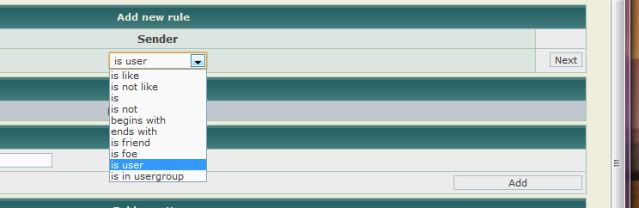
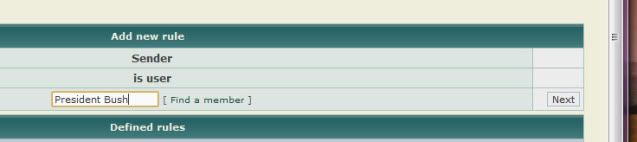
Select the user you wish to assign a rule to select next>
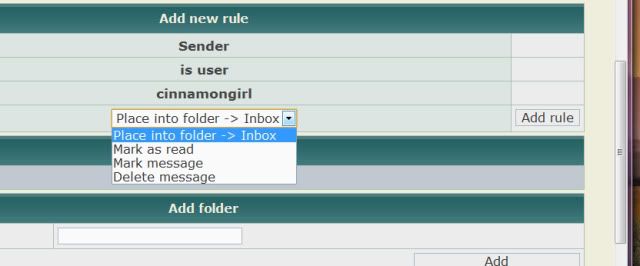
Then you can choose to delete mark as read etc. (choose carefully) And select 'add rule'>
That is a quick tutorial.
To block a PM from a sender, foe etc, here is how you do it.
Go to User Control Panel> Private Messages > Rules, folders & settings
Add a new rule by these options select 'sender' and next, >
Select next rule, 'is user'>
Select the user you wish to assign a rule to select next>
Then you can choose to delete mark as read etc. (choose carefully) And select 'add rule'>
That is a quick tutorial.
Please Log in or Create an account to join the conversation.
- MountainTownTechCrew
-
- Mountain Folk
-
Less
More
- Posts: 99
- Thank you received: 0
16 Dec 2010 12:37 #4
by MountainTownTechCrew
Replied by MountainTownTechCrew on topic Features and tutorials (If you are new, start here)
Here is a tutorial on PMing more than one person.
1. Put the member name in the box on the left.
2. Then press the add button. It should show up in the row that says TO:
3. Be aware you may have to press the submit button twice.
4. If you need to remove a name press remove. The limit is 4.

1. Put the member name in the box on the left.
2. Then press the add button. It should show up in the row that says TO:
3. Be aware you may have to press the submit button twice.
4. If you need to remove a name press remove. The limit is 4.
Please Log in or Create an account to join the conversation.
- MountainTownTechCrew
-
- Mountain Folk
-
Less
More
- Posts: 99
- Thank you received: 0
31 Dec 2010 09:53 #5
by MountainTownTechCrew
Replied by MountainTownTechCrew on topic Features and tutorials (If you are new, start here)
Tutorial on posting Powerpoint Presentation Slide Shows.
www.authorstream.com
Choose your item from your computer or a link on the web. Click upload.

After the item uploads it will start processing.

As long as you have an account you should be able to leave it and get an email when it is done processing.

Copy the URL link and post.

Here is an Example, Bottom right there is button for full screen
http://www.authorstream.com/Presentatio ... 50-1960-1/
To see the other slides hit the arrows or your space bar on your keyboard.
Google Presentation
In google docs you can choose presentation. The presentation viewer will not play music but the advantage is that it will host the original and you can download it.

Choose Upload

Choose public or anyone with a link

Choose your Powerpoint file to upoload.

To post in a post on the forum choose. Paste in Email or IM. As mentioned earlier you can also download the file and watch with Powerpoint on your computer

www.authorstream.com
Choose your item from your computer or a link on the web. Click upload.
After the item uploads it will start processing.
As long as you have an account you should be able to leave it and get an email when it is done processing.
Copy the URL link and post.
Here is an Example, Bottom right there is button for full screen
http://www.authorstream.com/Presentatio ... 50-1960-1/
To see the other slides hit the arrows or your space bar on your keyboard.
Google Presentation
In google docs you can choose presentation. The presentation viewer will not play music but the advantage is that it will host the original and you can download it.
Choose Upload
Choose public or anyone with a link
Choose your Powerpoint file to upoload.
To post in a post on the forum choose. Paste in Email or IM. As mentioned earlier you can also download the file and watch with Powerpoint on your computer
Please Log in or Create an account to join the conversation.
- MountainTownTechCrew
-
- Mountain Folk
-
Less
More
- Posts: 99
- Thank you received: 0
07 Jan 2011 04:18 #6
by MountainTownTechCrew
Replied by MountainTownTechCrew on topic Features and tutorials (If you are new, start here)
How to Post a Poll.
1.Select new topic.

2. Enter explanation of poll in the post body.

3. Post options. Post each option on a new line the system will automate into poll choices.
Choose other options.

You just created a poll!

1.Select new topic.
2. Enter explanation of poll in the post body.
3. Post options. Post each option on a new line the system will automate into poll choices.
Choose other options.
You just created a poll!
Please Log in or Create an account to join the conversation.
- MountainTownTechCrew
-
- Mountain Folk
-
Less
More
- Posts: 99
- Thank you received: 0
14 Jan 2011 12:51 #7
by MountainTownTechCrew
Replied by MountainTownTechCrew on topic Features and tutorials (If you are new, start here)
To print a post or topic, go to 'print view' on the line under
 and print.

Please Log in or Create an account to join the conversation.
- MountainTownTechCrew
-
- Mountain Folk
-
Less
More
- Posts: 99
- Thank you received: 0
03 Mar 2013 08:26 - 12 Apr 2018 15:56 #8
by MountainTownTechCrew
Replied by MountainTownTechCrew on topic Features and tutorials (If you are new, start here)
We've got a new tutorial thread specifically covering many of the new bbcode tools that we added when we completed our upgrade last November. You can find it in this thread,
Fun Font Additions & New Codes to Use
Have fun posting!
Have fun posting!
Last edit: 12 Apr 2018 15:56 by MyMountainTown.
Please Log in or Create an account to join the conversation.
Time to create page: 0.171 seconds
sponsors